
How to Create an Instagram Carousel on Desktop (Mac & PC) – A Photographer’s Guide
As a full-time wedding photographer, I spend a lot of time sitting in front of my computer editing photos. But when it comes to creating Instagram carousels, I’ve always found the process a little frustrating.
Like many photographers, I want to share more than just one beautiful photo from a wedding. I want to tell a story — from the little details and emotional moments to the portraits and all the fun on the dance floor.
Instagram carousels are perfect for that.
The problem? Most of my photos are already on my computer, and I really don’t enjoy moving everything onto my phone just to design an Instagram post.
I’ve tried different approaches, including Canva, and looked at popular apps like SCRL and Unfold. They’re all useful in their own ways, but I wanted something a little simpler and more photography-focused.
So I ended up creating my own tool called Piccie.
In this guide, I’ll show you how to create Instagram carousels directly from your Mac or Windows PC, including seamless carousels where your photographs flow across multiple slides.
Why Create Instagram Carousels on a Desktop?
There’s nothing wrong with designing Instagram posts on your phone. For quick content, it works perfectly well.
But for photographers, working on a desktop has some advantages.
For starters, our photos are usually already there. Whether you’re using Lightroom, Photoshop or another editing program, it makes sense to keep everything in one place.
I also prefer having a bigger screen. It’s easier to compare images, arrange them into a story and see how the overall carousel flows.
Here are a few reasons I prefer a desktop workflow:
- Bigger screen: You can see your layouts, images and composition more clearly.
- Easier photo selection: Your edited images are already on your computer.
- Mouse and keyboard: More comfortable for precise positioning, cropping and arranging photos.
- Better storytelling: You can see multiple slides together and work out how one image leads into the next.
- Less transferring: No need to keep moving images between devices just to design the carousel.
For me, it’s about spending less time putting an Instagram post together and more time sharing the photos I love.
Canva, SCRL and Unfold: Which Is Better for Instagram Carousels?
There are quite a few tools available for creating Instagram carousels. Three popular names you might have come across are Canva, SCRL and Unfold.
They’re all worth considering, depending on how you prefer to create content.
Canva — Great for Templates and Graphic Design
Canva is probably one of the most familiar design tools around.
It’s available on desktop, has a huge collection of templates and is particularly useful if you’re creating educational posts, marketing graphics or carousels with lots of text.
You can also create seamless Instagram carousels in Canva. Depending on your approach, this may involve working with multiple pages or creating a wider design and splitting it into individual slides.
For photographers who mainly want to arrange photos, though, Canva can sometimes feel like more of a general-purpose design tool than they actually need.
SCRL — Popular for Creative Instagram Carousels
SCRL is known for its creative Instagram carousel layouts, photo collages and designs that flow across slides.
It’s particularly popular with people who enjoy creating visually interesting posts from their phones.
However, if you’ve been searching for SCRL for desktop, SCRL for Mac or a SCRL alternative for PC, you might be looking for a workflow that lets you design your carousels without relying on a mobile app.
That was one of the things I was looking for myself.
Unfold — Beautiful Templates for Social Media
Unfold, by Squarespace, is another popular option for creating social media content.
It offers stylish templates, photo and video editing features, and tools for Instagram Stories and posts.
Unfold is primarily a mobile creation app, although its Pro offering also includes desktop asset management.
It’s a good option if you like its particular visual style and templates.
What About Piccie?
Rather than trying to compete with everything these apps offer, I wanted to build something focused specifically on photographers.
No complicated design software. No endless collection of features I’ll probably never use.
Just a simple way to turn my photographs into beautiful Instagram carousels from my computer.
That’s how Piccie started.
Introducing Piccie — A Desktop Instagram Carousel Maker for Photographers
A little background about me.
Before becoming a full-time wedding photographer in Perth, Australia, I worked as a software engineer.
After spending years photographing weddings, I started getting back into software development. Eventually, I decided to build a tool that would solve one of my own everyday frustrations.
I called it Piccie — pronounced “Pic-C”, a little Aussie-inspired name for a picture.
Piccie is a browser-based Instagram carousel and collage maker designed primarily for desktop users on Mac and Windows.
It lets you import your photos, arrange them into different layouts, create seamless transitions between slides and export everything ready for Instagram.
You don’t need to install a separate desktop application, and Piccie is currently free to use during its beta period.
[SCREENSHOT 2 — PICCIE DESKTOP WORKSPACE]
How to Create an Instagram Carousel on Mac or PC Using Piccie
Here’s how I usually approach creating a carousel for my wedding photography.
Step 1: Select Your Favourite Photos
Before opening the carousel editor, I choose the photos I want to share.
For a wedding, I might select a mixture of:
- Getting-ready moments and wedding details
- The ceremony and emotional reactions
- Family and bridal party photos
- Couple portraits
- Reception details and candid moments
I try to choose photos that work together rather than simply picking all the most impressive images.
Sometimes a quiet, emotional photograph works beautifully next to a dramatic portrait.
Once I’ve made my selections in Lightroom, I export the images as JPEGs, ready to import into Piccie.
Step 2: Open Piccie and Import Your Photos
Head over to piccie.app using your desktop browser.
Open the Piccie Studio and start a project.
You can import JPEG or PNG photos directly from your computer into the photo panel.
One thing I particularly like about this approach is that the current Piccie beta uses local browser storage for your projects and photographs rather than uploading them as cloud projects.
Your photos stay on your device as part of the editing workflow.
For Instagram, I generally recommend starting with a 4:5 portrait layout, which corresponds to 1080 × 1350 pixels. It gives your photographs plenty of space on the screen.
Step 3: Create Your Photo Layouts
This is where the fun begins.
Piccie offers a few different ways to arrange your photos, depending on how much control you want.
Auto Layout
If you just want to put a few photos together quickly, Auto Layout is a great starting point.
Add your photos, and Piccie will suggest compatible layouts. You can browse different arrangements until you find one that works.
Preset Layouts
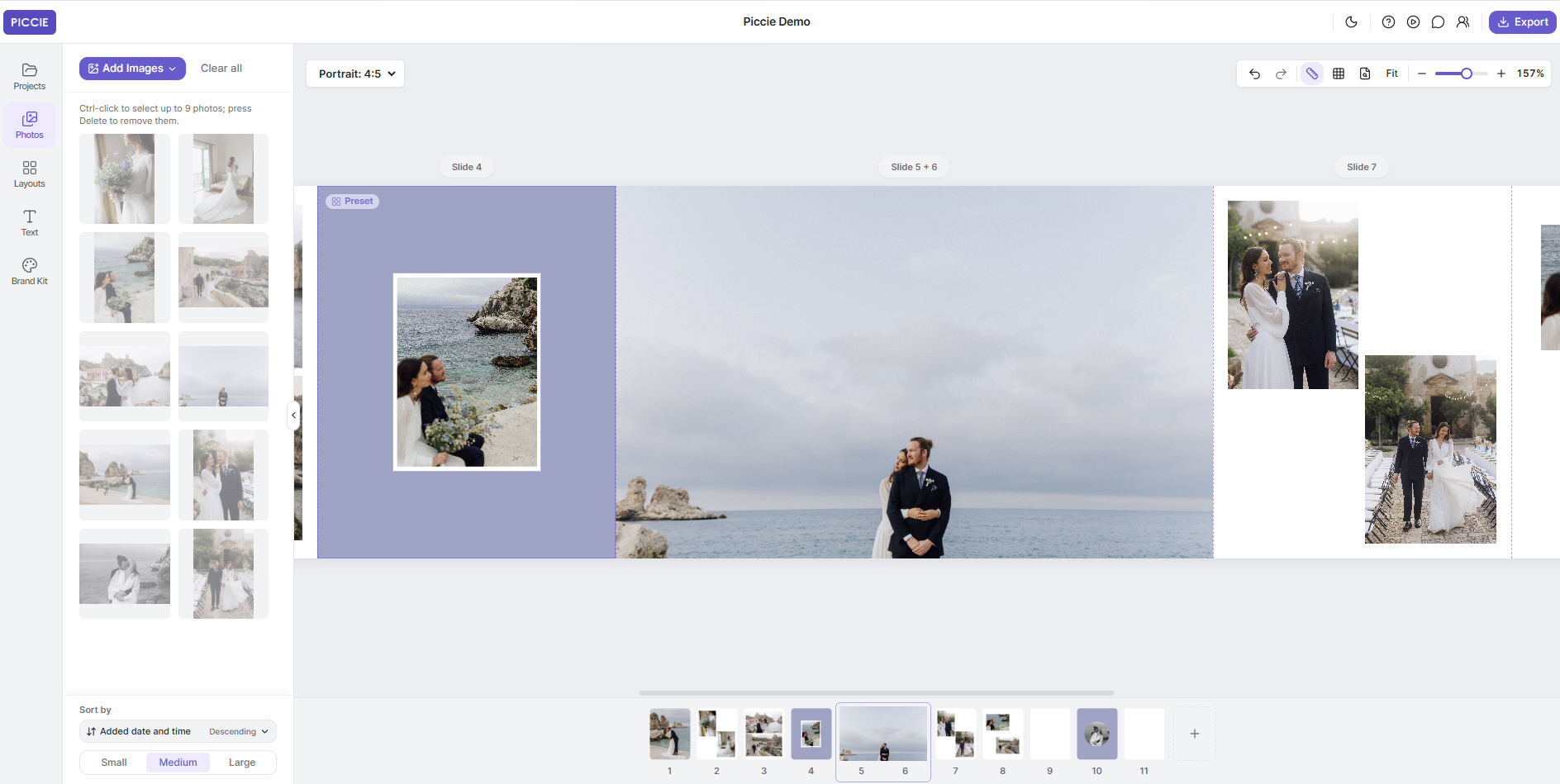
These are ready-made arrangements for your photos. They’re handy when you want something consistent without spending too much time designing it.
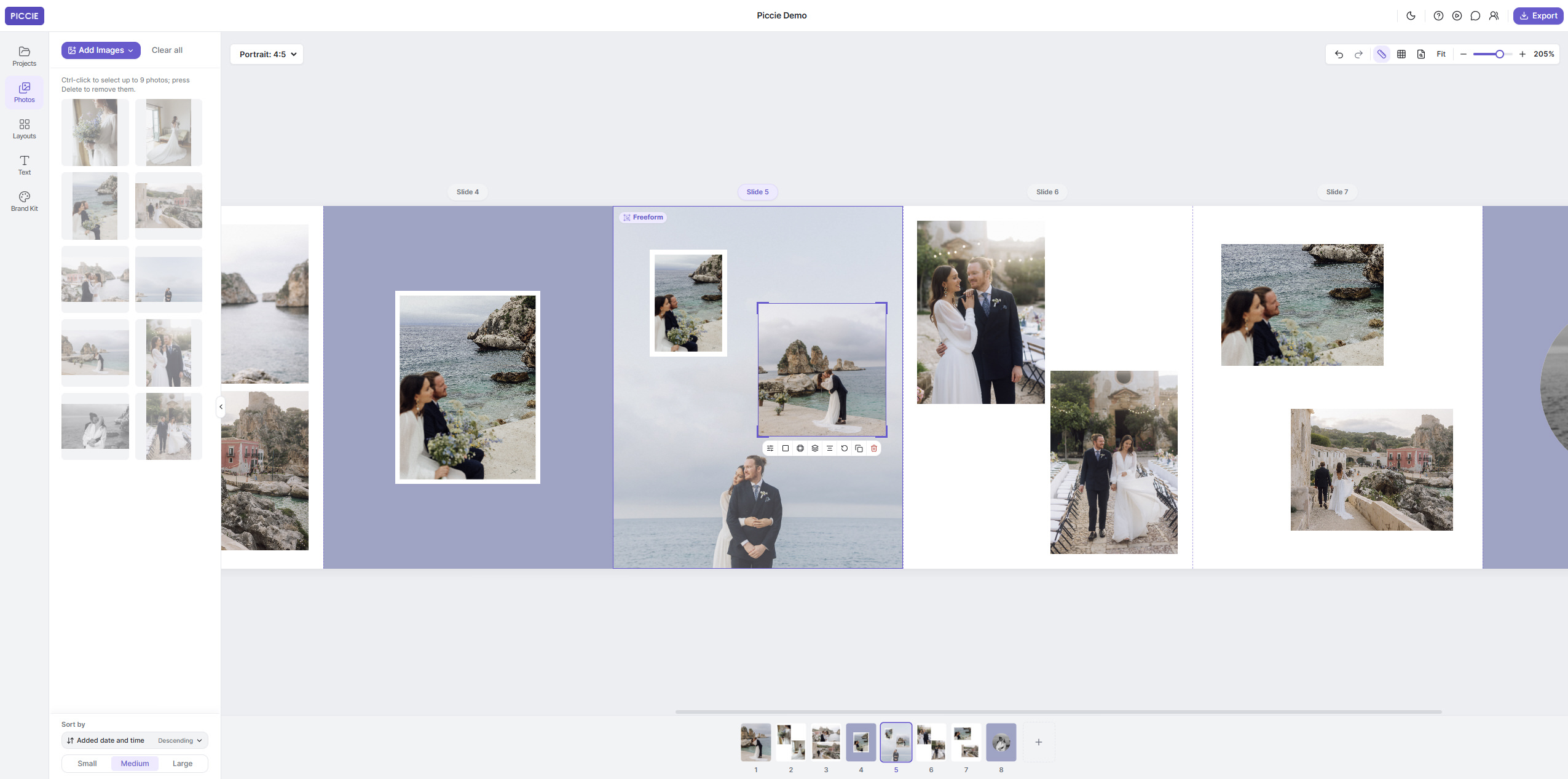
Freeform
This is my favourite when I want more creative control.
You can move, resize, crop and layer photos however you like, without being restricted to a fixed arrangement.
For wedding photography, I often like mixing a large hero image with a few smaller candid moments.
It helps make the carousel feel more like a story rather than just a collection of individual photos.
Step 4: Create a Seamless Instagram Carousel
You’ve probably seen those Instagram posts where a photograph continues smoothly as you swipe from one slide to the next.
That’s called a seamless Instagram carousel.
I love this style for wedding photos, especially wider photographs, landscapes or creative compositions.
Traditionally, creating seamless carousels can involve making one long canvas, carefully positioning everything, and splitting the design into separate images before uploading.
With Piccie, I wanted to simplify that process.
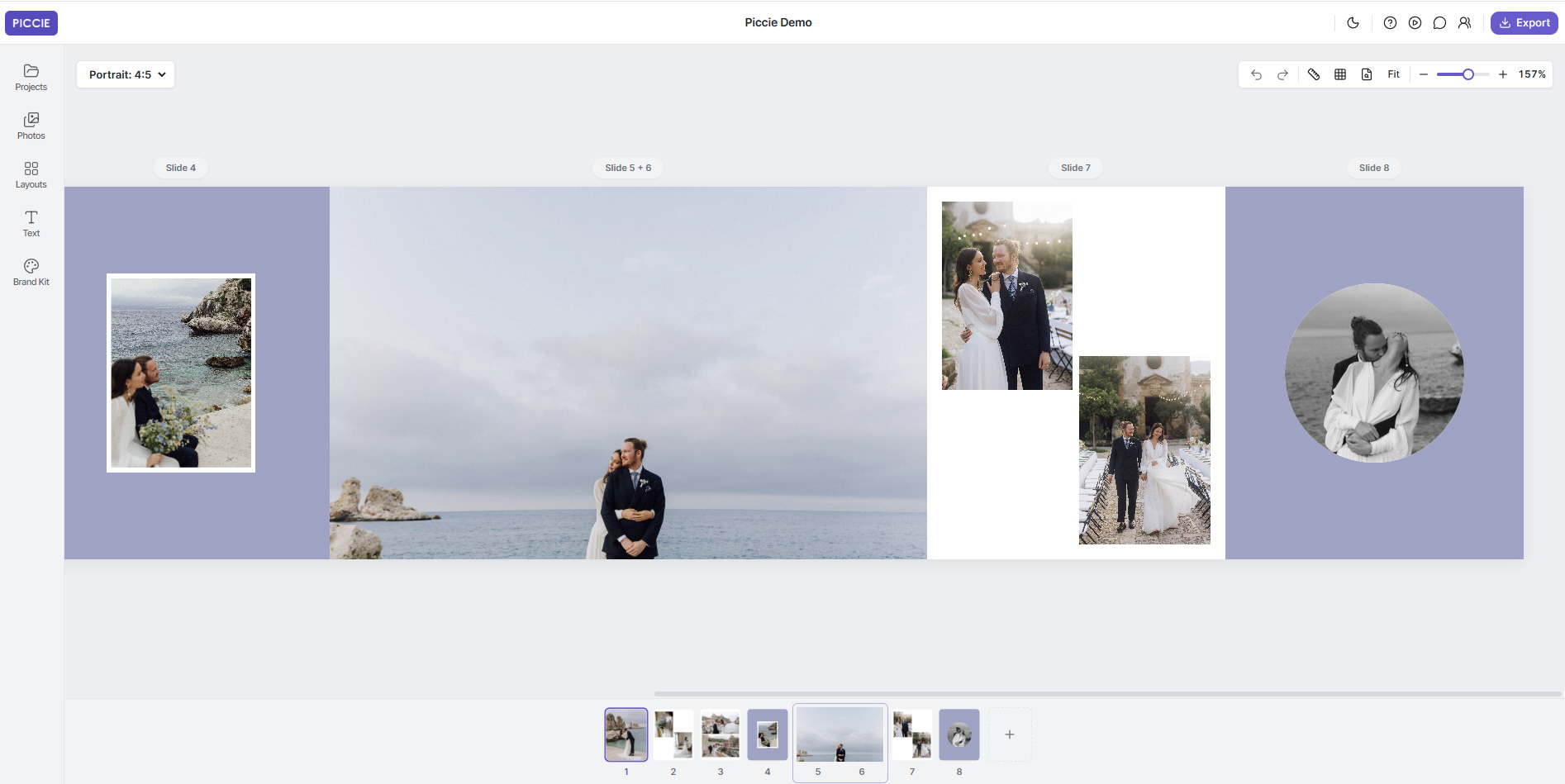
The Linked Slides feature lets you connect two neighbouring slides into one continuous workspace.
You can position a photograph across both slides, adjust the composition and see how the image flows between them.
When you export, Piccie separates them into individual Instagram-ready images.
No need to manually cut a giant canvas into smaller pieces.
Step 5: Preview and Export Your Carousel
Once you’re happy with your design, it’s time to export.
Before exporting, I like to check the order of the slides and make sure the photos flow nicely.
A strong first image is important, but I also like to finish the carousel with something memorable.
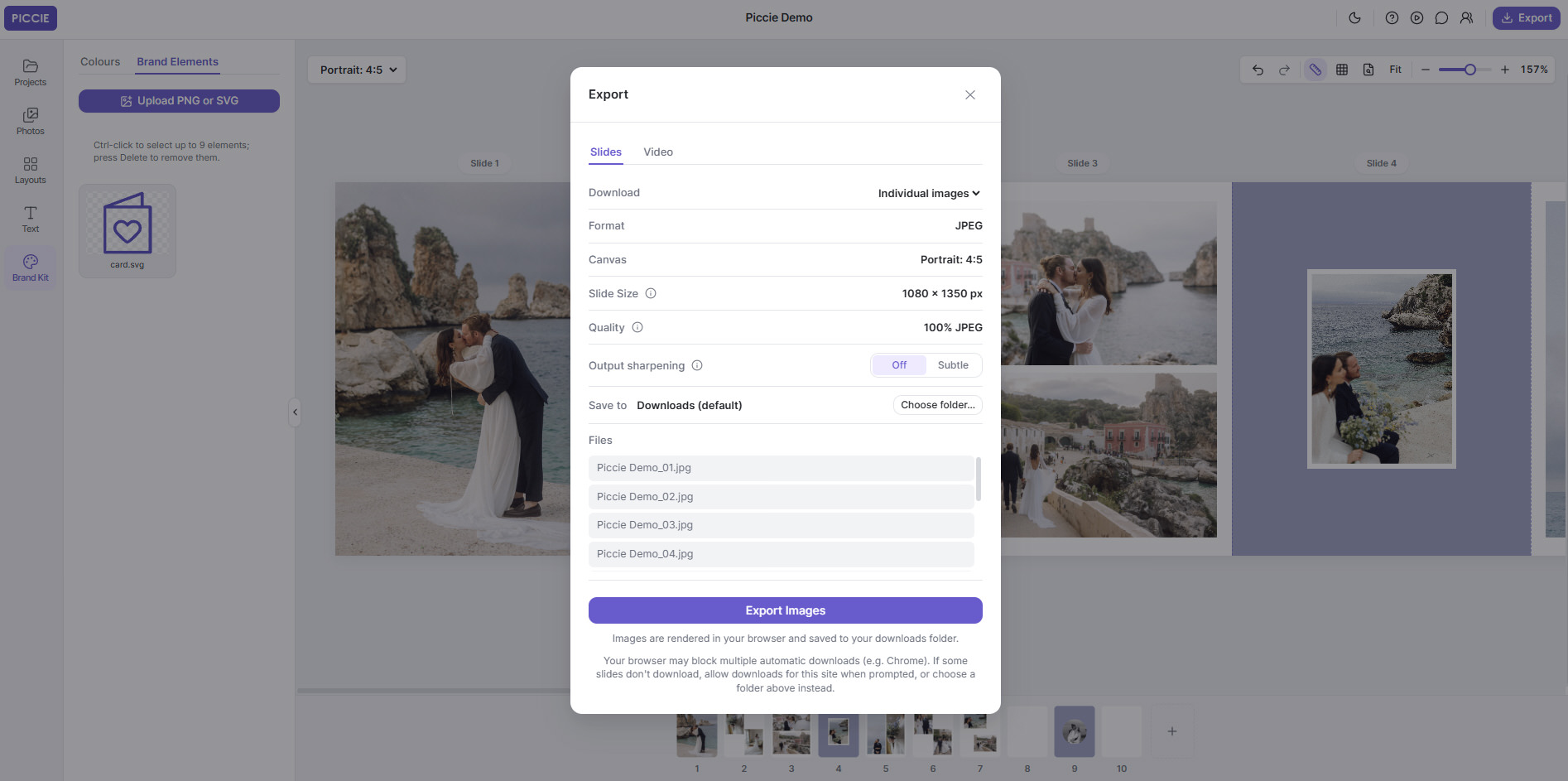
Piccie lets you export your slides as individual JPEG images or download them together in a ZIP file.
The images are exported in order, making them easier to organise when you’re ready to post.
The current beta supports up to 20 slides per project.
Step 6: Upload Your Carousel to Instagram
Now that you’ve exported your carousel, you’re ready to share it.
You can upload it from your phone, but you can also post directly from your computer.
To upload from desktop:
- Open instagram.com and log in.
- Click Create and select Post.
- Choose your exported images using the upload and multiple-photo selection controls.
- Check that the slides are in the correct order.
- Review the crop, add your caption and tags, and click Share.
Instagram currently supports up to 20 photos or videos in a single carousel post.
If you’ve created a seamless carousel, double-check the sequence and cropping before publishing so the images line up as intended.
And that’s it. You’ve created and published your Instagram carousel without needing to design it on a phone.
My Tips for Creating Better Instagram Carousels as a Photographer
After photographing weddings for years, I’ve learnt that creating a great collection of images is about more than choosing the technically perfect photos.
It’s about how those images make people feel.
The same applies to Instagram carousels.
1. Start with a strong opening image. Choose something that catches attention. It could be an emotional moment, a striking portrait or something a little unexpected.
2. Tell a story rather than showing everything. You don’t need to include every beautiful photo from a wedding. Select images that work together and make people want to keep swiping.
3. Mix wide, medium and close-up photographs. A combination of perspectives creates variety and makes the carousel feel more interesting.
4. Use seamless transitions when they add something. A photograph flowing across two slides can look amazing, but not every slide needs that effect. Sometimes a simple, full-frame photograph is more powerful.
5. Don’t overcomplicate the design. I prefer letting the photographs do most of the talking. A good layout should complement the images, not distract from them.
Frequently Asked Questions
Can I create Instagram carousels on a Mac or Windows PC?
Yes. You can design Instagram carousels on both Mac and Windows using browser-based tools such as Canva and Piccie. You can also upload carousel posts through Instagram’s desktop website.
Is there a SCRL alternative for desktop?
If you’re looking for a desktop-focused alternative to SCRL, Piccie is one option worth exploring. It offers photo layouts, Freeform editing and seamless Linked Slides through a desktop browser.
Can I create a seamless Instagram carousel in Canva?
Yes. Canva supports Instagram carousel designs, including seamless styles. Depending on your design approach, you may need to arrange the slides carefully or split a wider composition into individual images.
Piccie offers a different approach through Linked Slides, letting you compose across two slides and export them separately.
Is there an Unfold alternative for Mac or PC?
If you mainly want to create photography carousels on a computer rather than use Unfold’s mobile-based templates, Piccie may suit your workflow.
The two tools have different priorities, so the better choice depends on whether you prefer template-driven social content or a desktop-first photography workspace.
Is Piccie free?
Piccie is currently free to use during its beta period, with no credit card required. Optional paid features may be introduced in the future, while a free version is planned to remain available.
Do I need to install Piccie?
No. Piccie runs in a supported desktop web browser, so there’s no separate application to install.
Final Thoughts — Create More, Stress Less
I originally built Piccie because I wanted to make my own Instagram workflow easier.
As a wedding photographer, I’d much rather spend my time photographing beautiful moments, editing photos or meeting couples than wrestling with software just to create an Instagram post.
I also know I’m not the only photographer who feels that way.
Piccie is still a relatively new project, and I’m continually improving it based on feedback from photographers and other creatives.
My goal isn’t to create another complicated design platform. It’s to build something simple, practical and enjoyable for photographers who want to share their work.
If you’ve been looking for an easier way to create Instagram carousels on your Mac or PC, I’d love for you to give it a try.
Try Piccie for Free — Desktop Instagram Carousel Maker
You can also check out the Piccie video tutorials if you’d like to see the tools in action.
Happy creating!
Dennis Tan
Wedding Photographer & Creator of Piccie
dennistancreative.com.au | piccie.app